Create a service key

Open HubSpot development settings, create a service key, and make sure Deals, Contacts, Companies and Pipelines can be used. When you connect, Funnel-up stores your CRM credentials only on your device in Apple Keychain, never on our servers.

  1. 01

    In HubSpot, open the settings page via the gear icon in the top right menu bar.
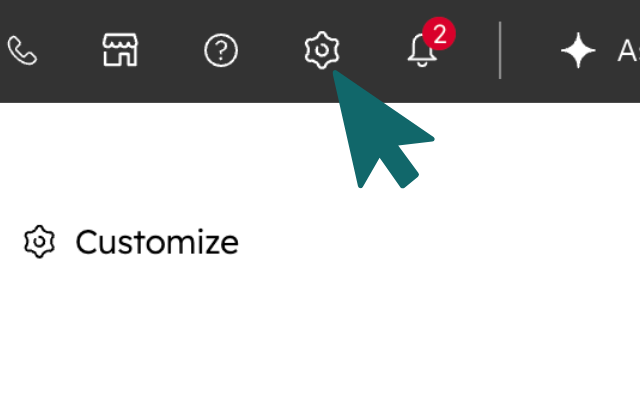
    HubSpot top menu with the settings gear icon
  2. 02

    Select the Service Keys option under Integrations in the left sidebar.
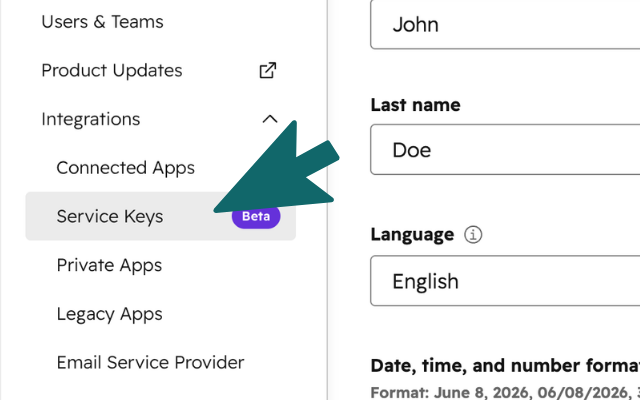
    HubSpot sidebar with Service Keys under Integrations
  3. 03

    Press Create service key in the top right corner.
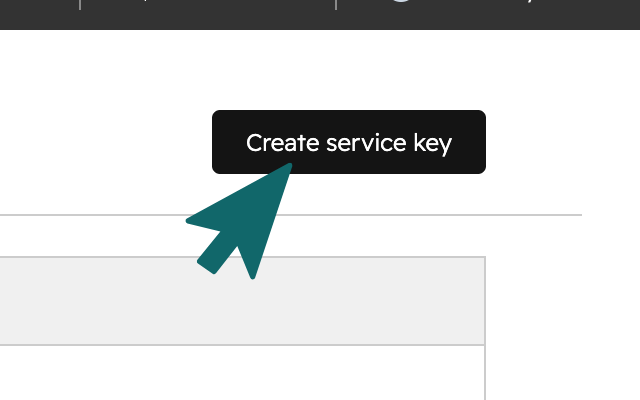
    HubSpot Service Keys page with Create service key button
  4. 04

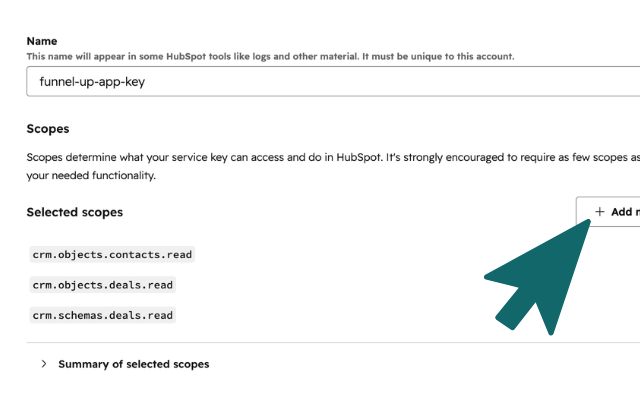
    Choose any name and add these scopes. The deals write scope lets Funnel-up update deal stages when you move marbles.

    • crm.schemas.deals.read
    • crm.objects.deals.read
    • crm.objects.deals.write
    • crm.objects.contacts.read
    • crm.objects.companies.read
    HubSpot service key form with name and scope settings
  5. 05

    Press Create to save the key settings.
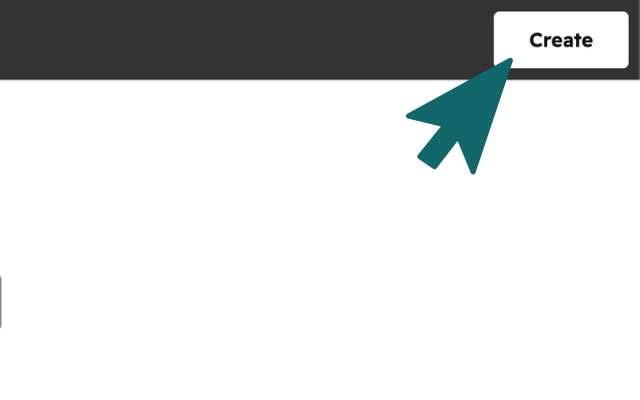
    HubSpot service key form with Create button

Paste the key

Open Funnel-up settings, choose HubSpot, paste the service key, and press Connect.

  1. 06

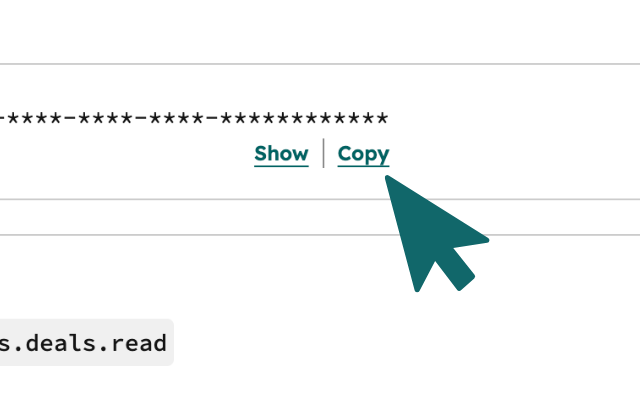
    Still in HubSpot, click Copy below the key you just created.

    HubSpot service key page with Copy below the created key
  2. 07

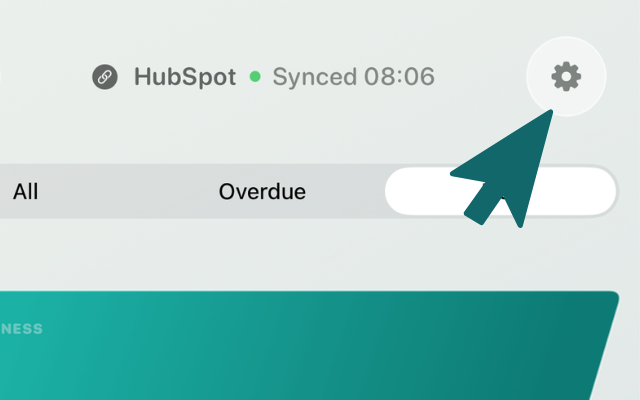
    In the Funnel-up app, press the gear icon to open the settings menu.

    Funnel-up app with settings gear icon
  3. 08

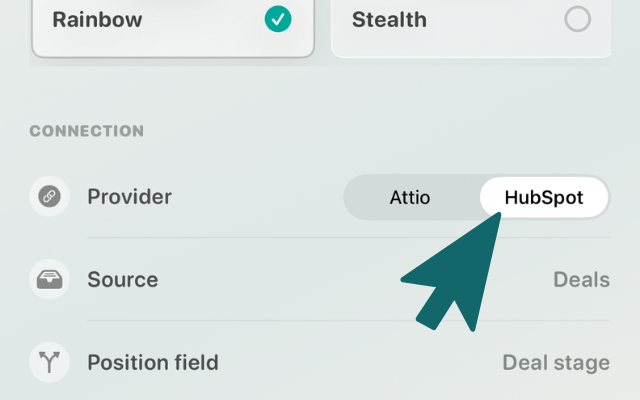
    Select the desired CRM from the selector.

    Funnel-up CRM selector
  4. 09

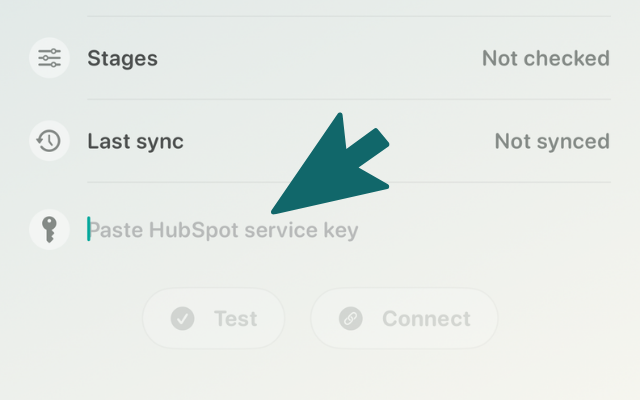
    Paste the key into the input field.

    Funnel-up API key input field
  5. 10

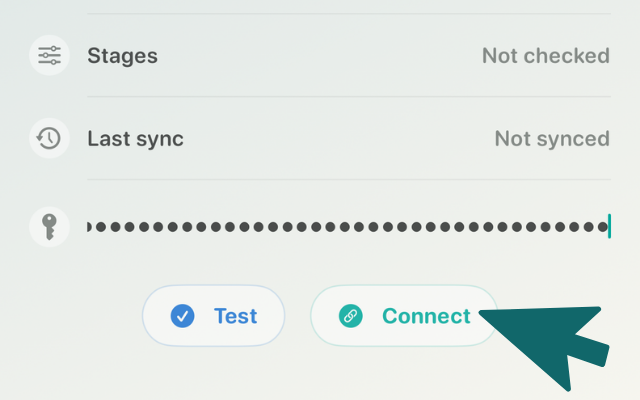
    Press Connect to save the key. The next stage check is optional; Funnel-up can adapt the first six stages from one CRM of your choice.

    Funnel-up Connect button for saving the CRM key
Optional

Match stages

Check the HubSpot deal stages you want Funnel-up to use. The app will adapt the first six stages from one CRM of your choice, you can name these six stages however you want. Using our standard name tags is optional.

  1. 11

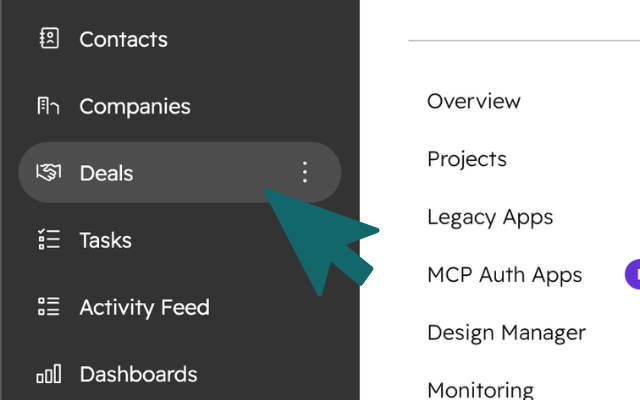
    Back in HubSpot, navigate to the deals page via the left side menu.

    HubSpot left menu with the Deals page
  2. 12

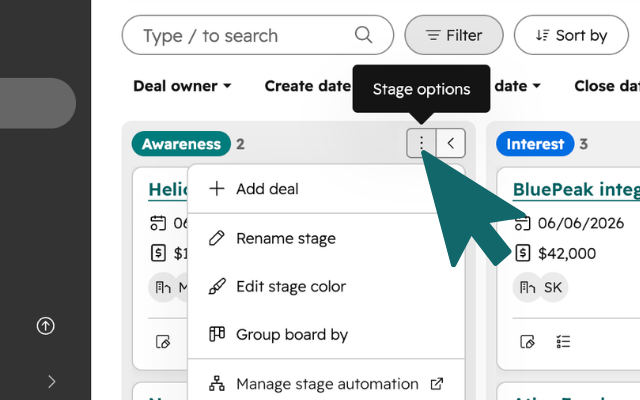
    Keep your own stage names, or press the three dots to rename the first six columns with these standard Funnel-up tags.

    • Awareness
    • Interest
    • Consideration
    • Intent
    • Evaluation
    • Purchase
    HubSpot deal board column menu for renaming stages

Sync deals

Run the first sync and confirm deals, timing, CRM links, email, call and activity logging actions appear as expected.

  1. 13

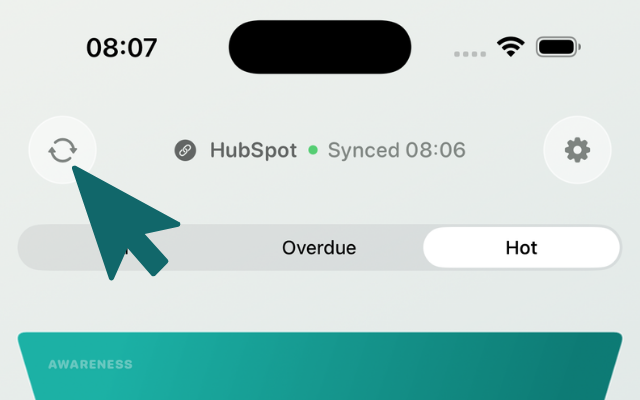
    Return to the app, press the sync icon in the top left. After a few seconds you should see your deals updated in the funnel view. Dragging a marble to another stage updates the deal stage in HubSpot. When you use a call or email action, Funnel-up can create a HubSpot note on the deal and use notes as part of the last touch timestamp.

    Funnel-up app with the sync icon in the top left
Optional

Add deal emojis

Create a custom deal property so Funnel-up can show your chosen emoji inside each marble and prospect card.

  1. 01

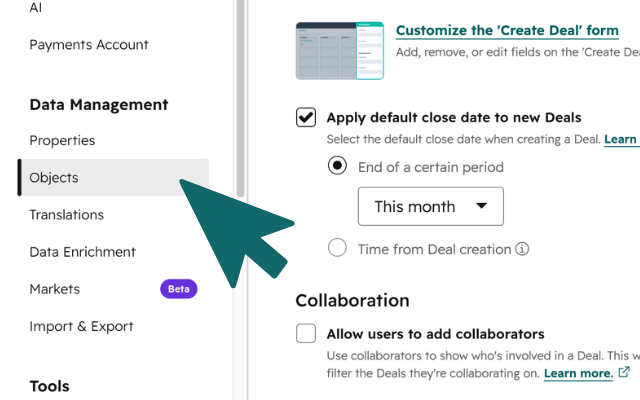
    In HubSpot settings, open the Objects page under Data Management.

    HubSpot settings sidebar with Objects under Data Management highlighted
  2. 02

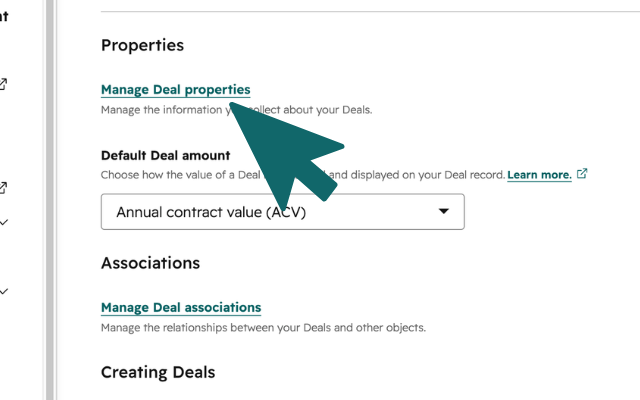
    On the Objects page, click Manage Deal properties under the Properties section.

    HubSpot Objects page with Manage Deal properties under Properties highlighted
  3. 03

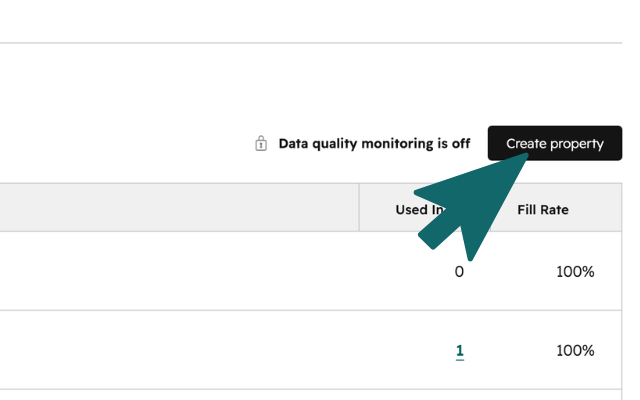
    On the Deal properties page, click Create property in the top right corner.

    HubSpot Deal properties page with Create property button highlighted
  4. 04

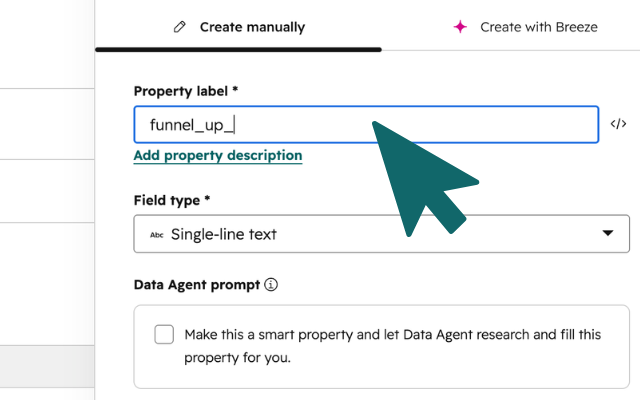
    In the Create property panel, enter the field name in the Property label field and keep Field type set to Single-line text.

    • We prefer funnel_up_emoji but funnelup_emoji, marble_emoji, or emoji also work.
    HubSpot Create property panel with funnel_up_emoji entered as the property label
  5. 05

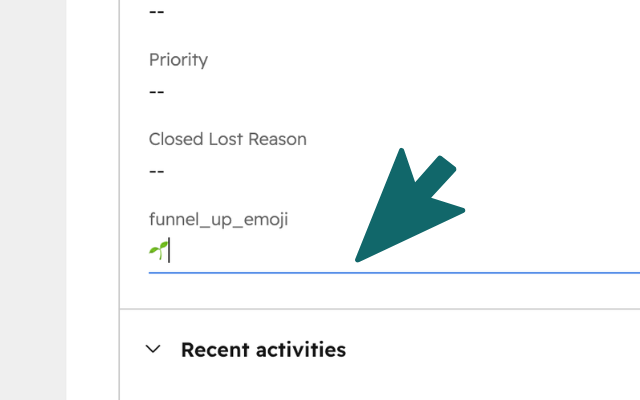
    Back on a deal record, find the funnel_up_emoji property, add one emoji, save the record, and run sync again in Funnel-up.

    HubSpot deal record with an emoji added to the funnel_up_emoji property
Download on the App Store